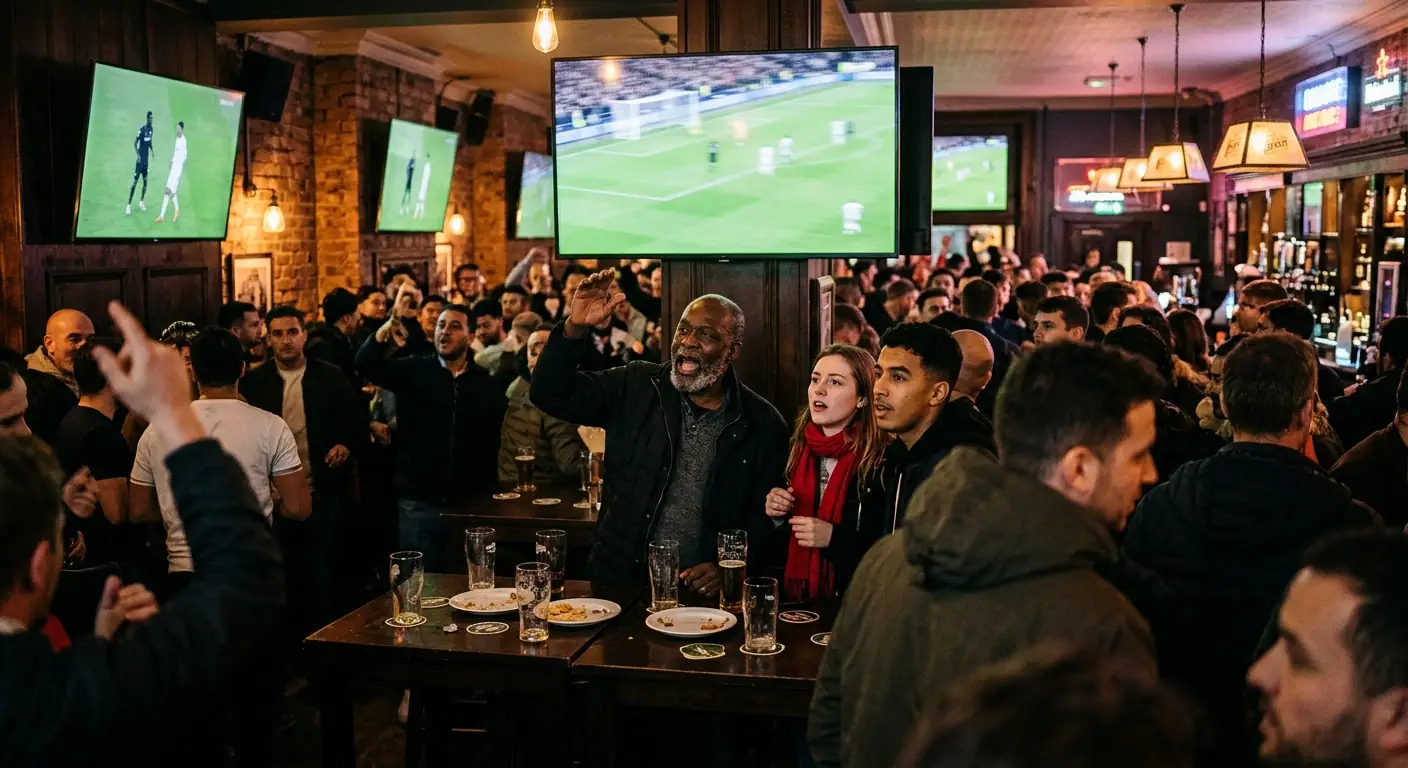
Nothing tests an IPTV setup like live sport. The action is fast, everyone is watching at the same moment, and a freeze at the wrong second is far more annoying than during a drama you can pause. The good news is that most of what makes sport look great is in your control. This guide explains what matters and how to prepare. It's about picture and setup; for what's included in our plans, ask us directly.
Why sport is demanding
Sport combines everything video compression finds hard: fast movement, fine detail like grass and crowds, and sudden camera pans. Encoders need more data to keep that sharp, so sports streams tend to use higher bitrates than studio programmes, and any shortfall in your connection shows up quickly as blur, blocking or buffering.
Live events also have no second chances. On-demand video can buffer ahead for minutes; a live stream can only buffer a few seconds without falling further behind the action.

Frame rate matters more than you think
UK television runs at 50 frames per second for sport. When your device outputs at the wrong refresh rate, perhaps 60 Hz, you get a subtle judder on every pan: the ball and cars appear to stutter even though nothing is buffering. Motorsport and football show it most.
The fix is to let your device match the content's frame rate. On Apple TV, turn on Match Frame Rate; on many Android TV and Google TV devices, look for “match content frame rate”. See our Apple TV and Google TV guides.

Where to find frame-rate matching
| Device | Setting |
|---|---|
| Apple TV | Settings > Video and Audio > Match Content > Match Frame Rate |
| Google TV devices | Settings > Display & Sound > Advanced display settings > Match content frame rate |
| Fire TV (Fire OS 4K models) | Settings > Display & Sounds > Display > Match Original Frame Rate |
| Nvidia Shield | Display & Sound settings > Advanced settings > Match content frame rate |
Menu names move a little between software versions, but the setting is usually in the display section. Once it's on, the TV may go black for a second when a channel starts: that's it switching to 50 Hz, and it's a good sign.
4K or HD for sport?
On a large 4K TV, a genuine 4K sports broadcast is a real step up: you can pick out shirt numbers, expressions in the scrum and individual faces in the crowd. But only some events are produced in 4K, and a 4K stream needs roughly two to three times the bandwidth of HD.
A clean, stable HD picture at the full frame rate looks better than a 4K stream that keeps dropping. If your broadband or device is borderline, HD Premium is the safer choice. If everything is 4K-ready, read what 4K Premium needs.
The delay behind live
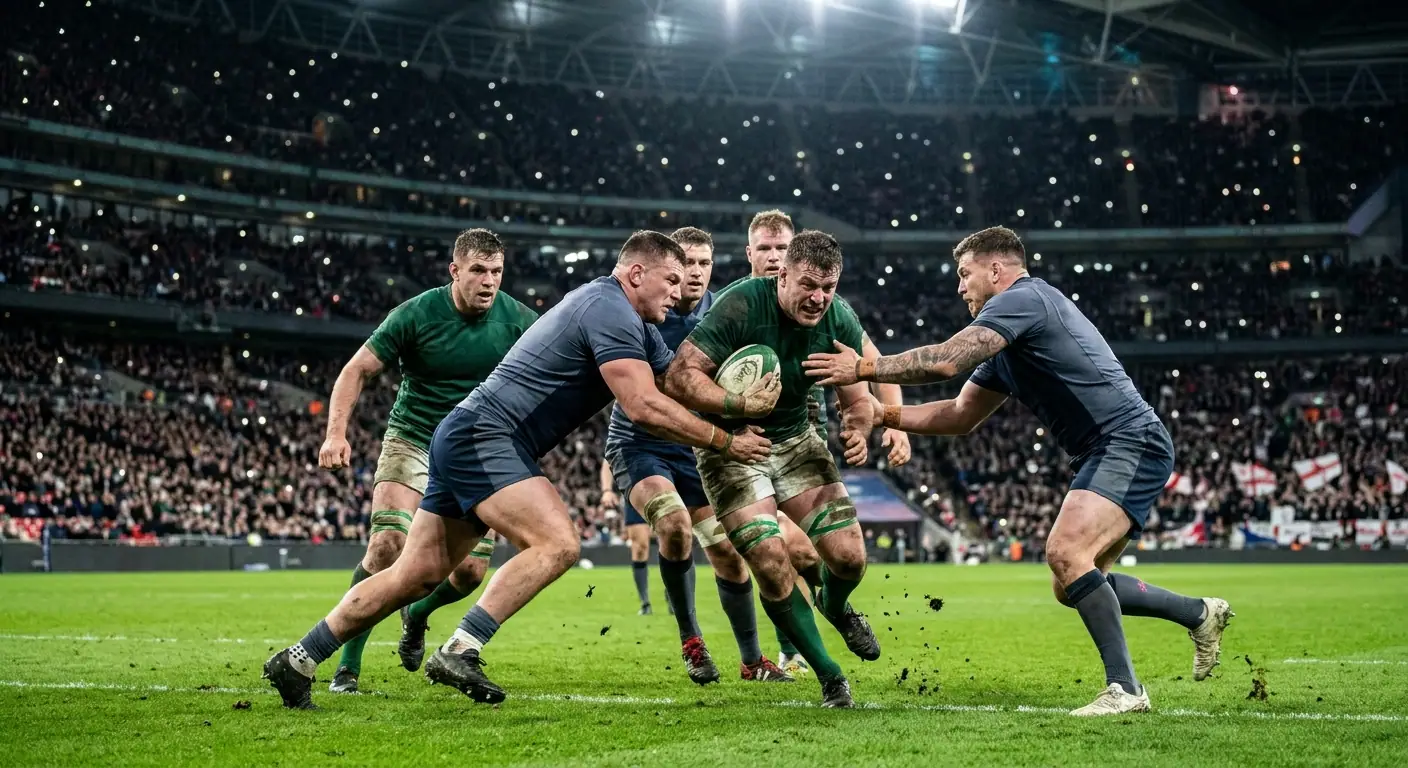
Every live stream, whether IPTV, an official streaming app or even digital broadcast, runs some seconds behind the event, because the pictures have to be encoded, sent and buffered. Streams are typically further behind than an aerial or satellite signal. That's why a neighbour's cheer or a score notification on your phone can arrive before the goal.
- Turn off score notifications on your phone during the match.
- A wired connection lets you use a smaller buffer without dropouts.
- Avoid a VPN for live sport, as it adds delay. See IPTV and VPNs.
- Some players let you reduce the buffer size; smaller buffers mean less delay but less protection against hiccups.
Match-day checklist
- Restart your streaming device and router an hour before kick-off.
- Pause big downloads, game updates and cloud backups in the house.
- Use Ethernet for the main TV if at all possible.
- Check the frame-rate matching setting is on.
- Open the channel a few minutes early so the stream has settled.
- Know your screen limit if others in the house will be watching too.
TV picture settings for sport
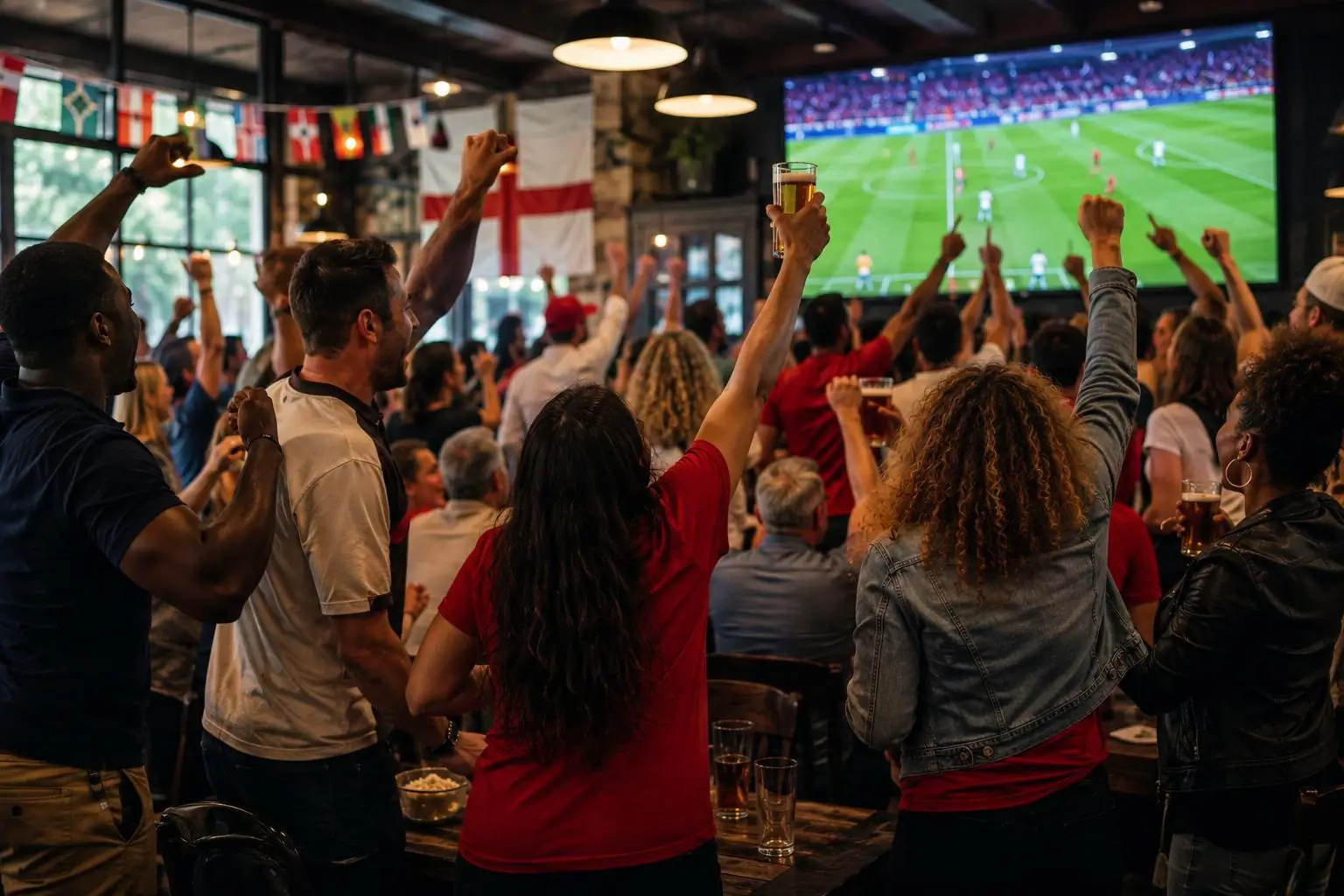
- Motion smoothing. TVs call it different names (such as Motion Interpolation, TruMotion or Auto Motion Plus). Some people like the smoother look in sport; others find it creates artefacts around the ball. Try it on and off and keep what you prefer.
- Sports picture mode. Often very bright and oversaturated. A standard or calibrated mode, with brightness raised a little, usually looks more natural.
- Game or low-latency mode. Reduces the TV's own processing delay. It won't make the stream any less behind live, and can disable some picture processing, so it isn't necessary for sport.
- Sound. Crowd atmosphere benefits from a soundbar. If commentary sounds out of sync, see audio out of sync.
Watching in more than one room
Big events are often when several people want to watch in different rooms, or when friends join and someone wants the game on in the kitchen too. Every extra screen needs its own share of broadband and counts towards your plan's simultaneous screens. Our multiple screens guide explains how to plan for it.
Do the sums before the big day. As a rough guide, each HD stream needs around 10 Mbps and each 4K stream around 25 Mbps, so two 4K screens and one HD screen want about 60 Mbps of steady speed, before anyone in the house starts a video call or a game download. Test at the same time of day as the event if you can: evening speeds are often lower than morning ones.
| Watching at once | Steady speed needed (rough guide) |
|---|---|
| 1 screen in HD | About 10 Mbps |
| 1 screen in 4K | About 25 Mbps |
| 2 screens in HD | About 20 Mbps |
| 1 screen in 4K and 1 in HD | About 35 Mbps |
| 2 screens in 4K | About 50 Mbps |
| 4 screens in HD | About 40 Mbps |
Add headroom on top for everyone else in the house. If the numbers are tight, HD on the second and third screens keeps the main TV smooth.
Watching on mobile data
If you follow a match on your phone away from Wi-Fi, check your allowance first. A 90-minute match streamed in HD at 5 to 10 Mbps uses roughly 3.4 to 6.8 GB, and the same match in 4K at about 25 Mbps uses around 17 GB. Most players have a lower-quality option for mobile, and a phone screen won't show the difference anyway.
Following more than one match
- Multi-view: some players, such as TiviMate with its Premium upgrade, can show several channels on one screen. Each channel uses one of your plan's screens.
- A second device: a tablet or laptop beside the TV does the same job and is easier to listen to separately.
- Catch-up for what you missed: where a channel offers catch-up, you can start a programme from the beginning from the guide. See catch-up and VOD.
Watching at home, not in a business
Showing sport to customers in a pub, club, gym or any other business is a different matter from watching at home. It needs commercial agreements with the rights holders, and domestic subscriptions of any kind aren't licensed for it. Everything on this page is about watching at home.
When it still stutters
If the picture buffers or freezes during matches, work through how to fix IPTV buffering. If your device itself is slow, see Fire Stick lagging or our Fire Stick alternatives.